








Stripe payment platform
Contents
When using revenue analytics, you can connect Stripe to PostHog as a source of revenue data. Revenue analytics will automatically use the data from Stripe to build your revenue dashboard.
If you already have a Stripe-connected source, you can access the revenue analytics settings page and turn on the Stripe toggle to connect to your Stripe data.

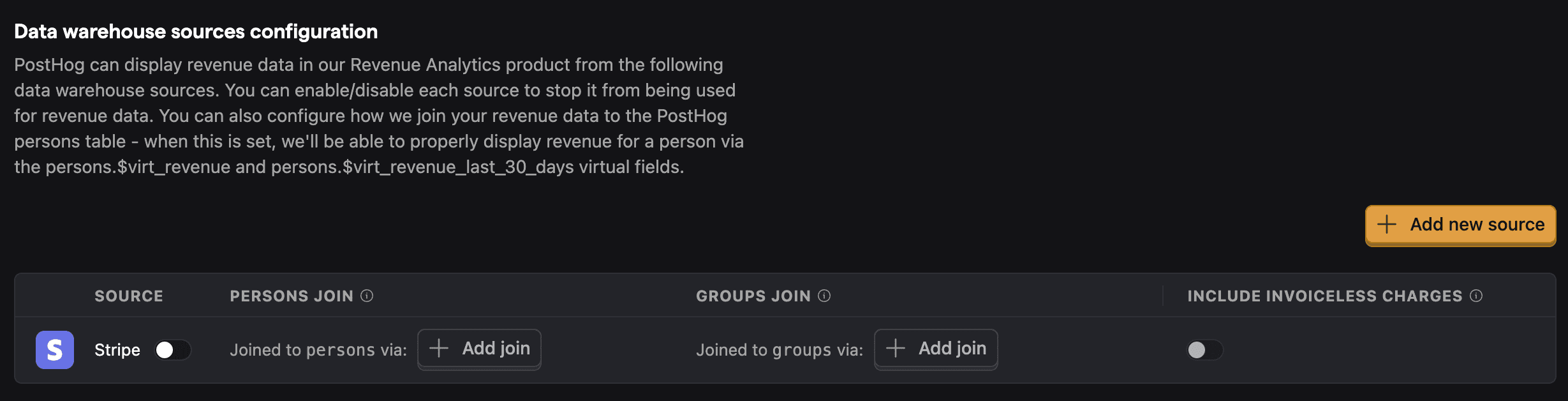
The Stripe connector can link charges, customers, invoices, prices, products, subscriptions, and balance transactions to PostHog.
Creating a Stripe API key
You need a Stripe API key to create a connector. Head to your Stripe dashboard > Developers > API keys, under Restricted keys, click + Create a restricted key.
You need to give your API key the following Read permissions in the Permissions column:
| Resource Type | Required Read Permissions |
|---|---|
| Core | Balance transaction sources, Charges, Customers, Disputes, Payouts, Products |
| Billing | Credit notes, Invoices, Prices, Subscriptions |
| Connect | Click Read in the Connect header |
If you aren't concerned with giving us more permissions than necessary, you can also simply click Read on the Core, Billing, and Connect headers to give us the necessary permissions.
If your Stripe account is in a language other than English, we suggest you update it to English before following the steps above to guarantee the correct permissions are set.
Adding a data source
- In PostHog, go to the Data pipeline page select the Sources tab.
- Click + New source button and select Stripe by clicking the Link button.
- In Stripe, get your Account ID by going to Settings > Business, selecting the Account details tab, and clicking your Account ID or pressing
⌘+Ito copy your ID. - Get your API key from the previous section
- Optional: Add a prefix to your table names
- Click Next
For Stripe tables, incremental syncs only sync new records and don't update existing records. This is a limitation of the Stripe API. To get real-time updates including changes to existing records, set up webhooks.
The data warehouse then starts syncing your Stripe data. You can see details and progress in the data pipeline sources tab.
Setting up webhooks for real-time syncing
By default, Stripe data syncs on a schedule. You can set up webhooks to get real-time updates instead, including changes to existing records.
To set up a webhook:
- Go to your Stripe source in the data pipeline sources tab.
- Click the Webhook tab.
- Click Create webhook.
PostHog automatically creates and registers the webhook on your Stripe account. Once set up, you can view the webhook status, including both PostHog's internal status and the Stripe-side webhook status, from the Webhook tab.
How is the data stored?
Your data will be imported and transformed into a set of managed views. Revenue analytics will use these views to build your revenue dashboard automatically.
You can also use these views in the SQL editor to run custom queries and visualize the data.
Deferred revenue
PostHog will automatically defer revenue recognition to match your accounting practices. This means we spread the revenue across all the months a charge is relevant for. You can read more about this on the deferred revenue page.
Connect to customers
You can link your Stripe customers to your persons and groups in PostHog. This helps you identify your top customers and see how much revenue they're generating.
You can learn more about this on the connect to customers page.